
Would you like to create short videos from long ones? Automatically subtitle your videos in just a few clicks before publishing them on social networks? Then this article should interest you, because that’s exactly what SendShort offers.
Let’s take a look at the tool’s features and see how well it works. Let’s go !
SendShort.ai, presentation and tutorial
SendShort is a SaaS (Software as a Service) developed by a French entrepreneur. Its aim is to simplify the daily life of video creators, by enabling them to recycle their long videos into short videos (shorts). All thanks to artificial intelligence that automatically resizes the video to 9:16 format.
The icing on the cake is that, after cropping and adapting the video’s format, SendShort will then automatically subtitle it. The text generated is dynamic, colorful and accompanied by animated emojis. This will help increase watch time, i.e. capture the viewer’s attention and encourage them to spend as much time as possible on our content.
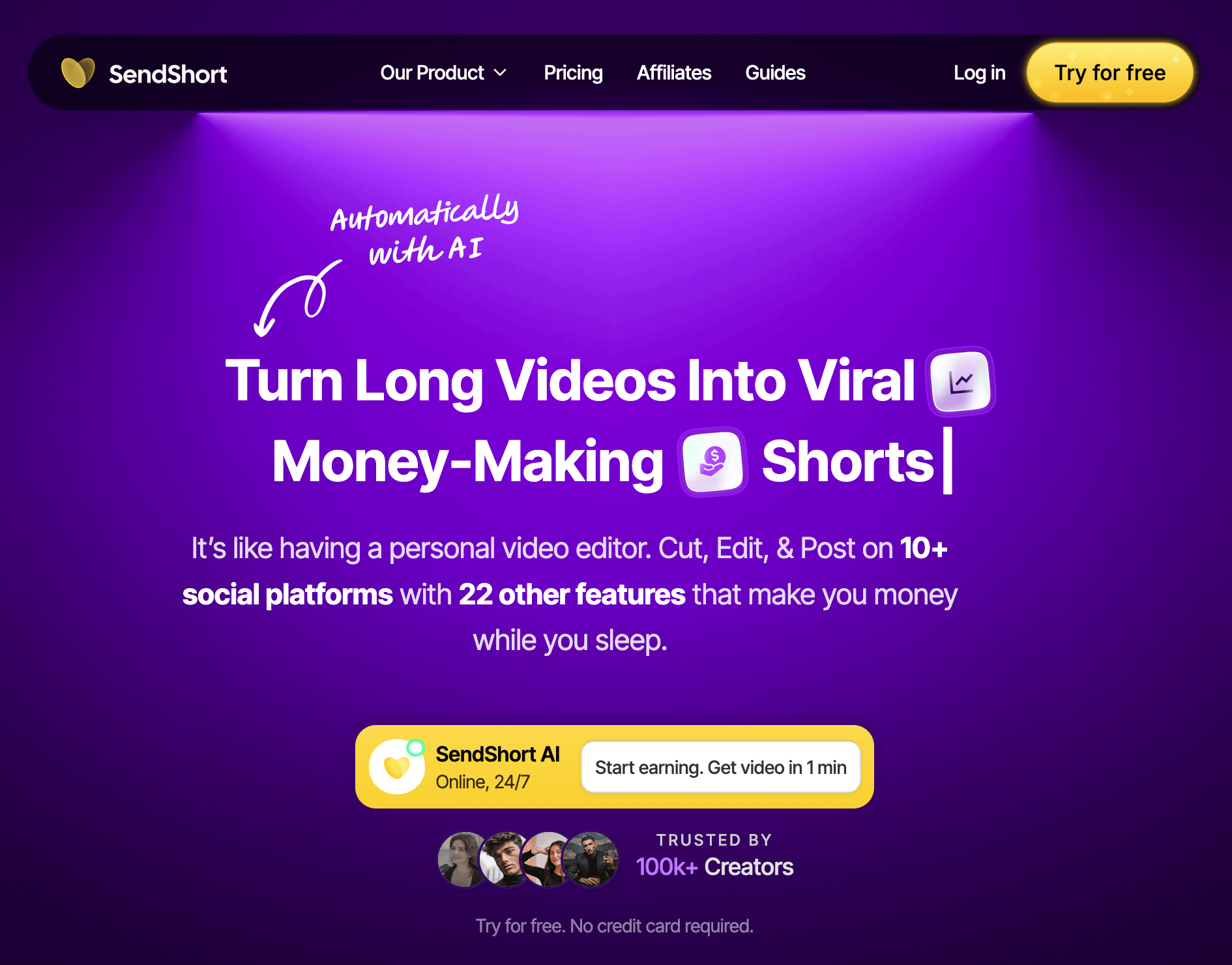
To cut a long story short, here are the two main features of SendShort:
- Transform a classic 16:9 horizontal video into a short 9:16 vertical video for social networks such as TikTok, Instagram and YouTube Shorts.
- Add dynamic subtitles generated automatically from its AI, working in a similar way to Submagic.
This tool offers a free trial version with which you can edit one video per day.
In the rest of this article, I’d like to invite you to test SendShort together.
1 – Registration
To start using SendShort, you need to create an account using an email address or your Google account.
2 – Uploading a video
The first step is to upload a video.
You can upload it directly from your computer or from a YouTube link. This second option is very useful when you want to recycle content already on YouTube into a short video.
SendShort can be used either to upload a video in horizontal format (for trimming, cropping and subtitling) or short videos in vertical format for direct subtitling.
For this test, we’ll add a classic video from a YouTube link.

After pasting the YouTube video link, selecting the language and clicking on “import”, the video went online very quickly. However, this will depend on the length of your video… In my case, it was only 3 minutes long.
3 – Creating shorts
The video is online. You can now select the sections you’re interested in to make shorts (short videos).

You can create several shorts from a single video. These can then be found in the projects section under the “My shorts” tab.
If you’re looking for an AI that automatically detects the best moments in a video and turns them into Shorts (curation of content by AI), I suggest you check out Opus Clip or Klap.
4 – Cropping
Automatically, Send Short’s artificial intelligence has cropped our horizontal video into a vertical one. You can go to the generated short and check the appropriateness of the framing for each scene.
If necessary, we can crop the scene manually. This is what I did to correct a scene where Tugan was not in the center of the video.

I think this is a great feature, as the AI does all the work for us. However, we can still check the quality of the rendering and intervene if necessary.
Once cropping is complete, we can move on to subtitling.
5 – Video subtitling
SendShort’s second major feature is automatic subtitling.
In just a few seconds, you get dynamic subtitles that are perfectly transcribed and synchronized.
Here too, you can intervene as required: correct the automatically generated text if you notice an error, add, change or delete an emoji, set the text on 2 lines…

Next, we can edit the appearance of the text: font, size, outlines, colors… All this while still having a preview of the result on the right-hand side of the screen, with a video player providing a final view of our shorts.
Once we’re happy with the result, we can download our first short video!
If subtitling is all you need, I invite you to take a look at our comparison of the best video subtitling software.
Support and community
SendShort support is here to help. You can contact members of their team via the chat available on their site or directly on their Discord community.
SendShort pricing
While SendShort offers a free trial version, you’ll need to subscribe if you want to use it and benefit from all its features.
SendShort offers 3 plans:
- Subtitle Pro: this plan exclusively allows you to subtitle up to 100 short videos per month.
- Advanced: unlike the previous plan, this one allows you to take advantage of automatic cropping, enabling you to generate shorts from long horizontal videos. The Advanced plan is also limited to 30 shorts per month.
- Expert: this plan lets you edit up to 100 short videos per month.
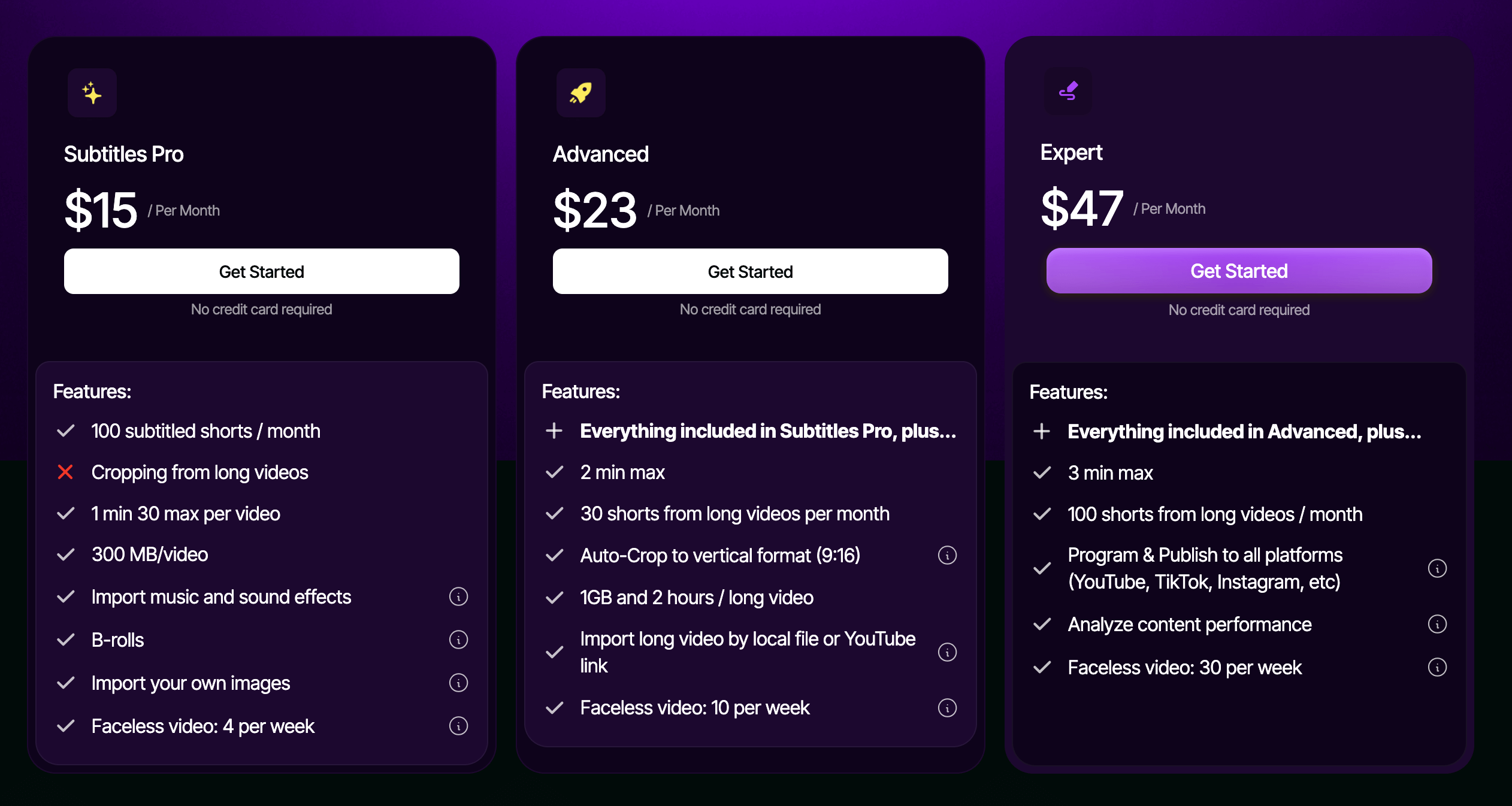
If you’d like to subscribe to SendShort, you’ll notice that, as with most SAAS, you can save 20% on your subscription price by taking out a yearly subscription.
I’ve also negotiated a SendShort promo code for you, which will give you a 10% discount on your subscription: SAVE10.
To use it, click on “Add a promotional code” at checkout and enter the code SAVE10.
My final opinion on SendShort
SendShort convinced me. It’s intuitive to use and will save you an enormous amount of time if you’ve got long-form video content that you want to turn into shorts without spending hours on it or calling in a video editor.
I’d also recommend SendShort.ai if you need to add subtitles to your short videos. Their artificial intelligence will save you an enormous amount of time, transcribing your words into animated subtitles that will dramatically improve your watch time.
If you’re not yet convinced, you can try SendShort for free.
If you decide to go further and take out a subscription, don’t forget to enter the promo code SAVE10 at checkout to get 10% off the price of the tool.