
Create 10 viral short videos from one long video. And do it 10 times faster!
That’s the promise of the software I’m presenting to you today. I call it Opus Clip. Although relatively unknown, this SaaS is the reference in its field. What sets it apart? Its artificial intelligence, which selects the best moments from a long video and turns them into viral short videos. Add to this automatic cropping and subtitling, and you’ve got it!
I’ve put Opus Clip to the test for you, and I’ll share my review and opinion with you in this article. Let’s go !
Introducing Opus Clip
Opus Clip is a SaaS (Service as a Software) co-founded by Young Z. and Grace Wang, among others, and launched in 2022. It’s aimed at content creators who want to recycle their long-form videos and turn them into shorts and then publish them on social networks like YouTube Shorts, Instagram and TikTok.
If you’ve ever tried doing it yourself, you’ll have noticed just how tedious the task can be. First, you have to watch the whole video to be able to select the best moments, the ones that deserve to be turned into shorts. Then it’s time to edit the video: first of all, you have to keep the best moments, remove blanks and extraneous words, crop the video to 9:16 format, add subtitles for added dynamism…
The good news is that Opus Pro does all this for you!

Here’s a list of Opus Clip’s main features:
- Automated content curation: Opus’ AI automatically selects a hook and the best moments in the video to turn them into shorts.
- Detects who is speaking (especially for podcasts) and reframes the video, centering the protagonist.
- Automatically subtitles the video with colored words and emojis.
- Offers a virality score (based on AI analysis) that gives an indicator of a clip’s virality potential.If you’re already convinced, you can try Opus Clip for free.
I suggest, however, that we test this tool together in the rest of this article.
1 – Registration
To get started, you need to register with an email address. It’s free and we’ll give you 1h30 credit to test the tool.
2 – Uploading and processing a video
Next, you can upload a long video from which you want to generate shorts. You can upload it from a YouTube, Rumble, Zoom or Google Drive link.
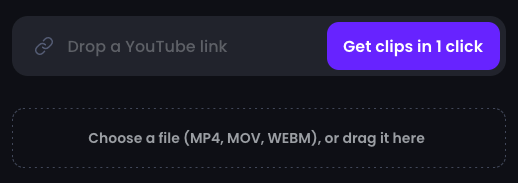
In my case, for this test, I chose a YouTube video by Yomi Denzel.
After entering the URL of the video, you can select the track you want to upload. This feature is useful if you don’t want to upload the whole video, thus saving your credit.
You can choose the ideal clip length: automatic, under 30 seconds, etc., and add keywords if you want to extract short videos on a particular theme.
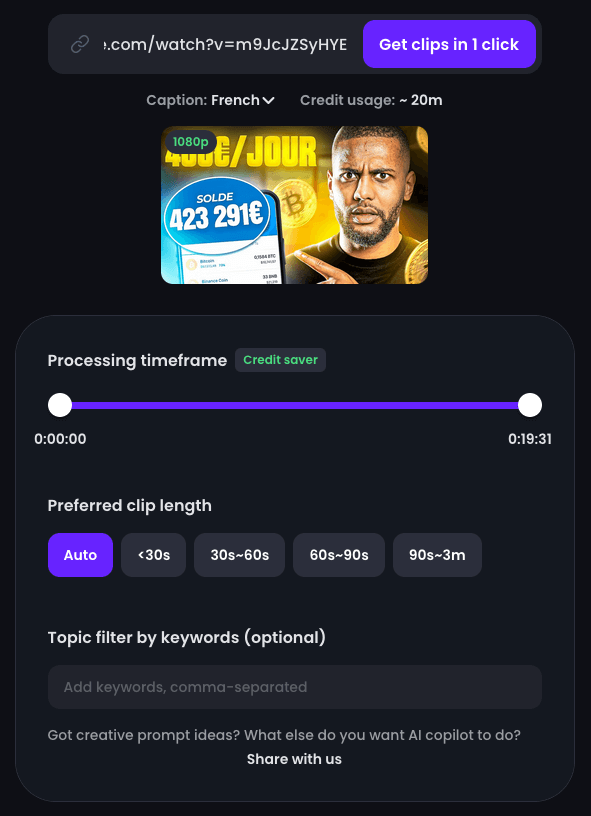
Negative point: in my case, the video took a long time to upload and process (around twenty minutes, as opposed to the advertised 12). It must depend on the length of the video. In any case, it’s better to put the video online, do something else and come back later.
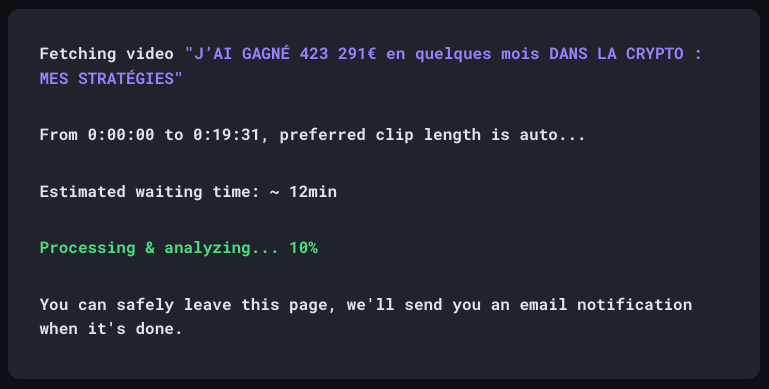
Edit: I tested the software with the free version. I hadn’t noticed that video processing was limited. It’s probably faster with the paid version.
3 – Virality scores and shorts overview
Opus then proposes a list of short videos ranked according to a virality score. An AI analyzes the short and estimates its potential. The closer the score is to 100, the better your content is likely to perform.
At this point, you can preview the short videos extracted by the software.
Here, for example, is the first video offered to me. Its virality score is 99.
Please note that I haven’t made any changes so far.
If you’d like to compare it with the original video, click here to access it and go straight to the moment Opus Clip edited.
As you can see, the content is relevant, the cropping is perfect, and the subtitles are more than adequate, even if they could be improved. By the way, if you’re looking for software that specializes in video subtitling, I suggest you check out this list of the best AI subtitling apps.
What I like about Opus Clip is that you can adjust the work done by the AI.
4 – Manual editing
I click on Edit to modify the previous clip.

Here are the different elements you can modify:
- Subtitles. You can change the subtitle text, which is very useful in case of errors, spelling mistakes or missing words. You can also alter the appearance of the text. Its size, position, whether it appears on one line or two, font, colors, etc.
- Video. You have access to a simple interface reminiscent of an editing program. If required, you can trim and delete certain moments in the video.
- Framing. Each sequence can be cropped if the cropping performed by the AI is not optimal.
5 – Downloading short videos
The free trial version allows you to download your shorts without watermarks and in good quality.
After this trial period, you’ll need to take out a subscription for more professional rendering.
6 – Automatic posting of your videos
Opus Pro lets you connect your social networks to the application (YouTube Shorts, Instagram, TikTok and LinkedIn) to schedule and post your videos automatically.
This is a paid feature not included in the trial version.
We’ve mentioned the paid version of the tool several times now. It’s time to find out how much it costs.
Opus Clip price
First of all, Opus offers a free trial version that lets you test its main features. I encourage you to try it out if you’re still hesitating after reading this article. It’s always good to make up your own mind and see if the software really suits you before you check out!
The Essential Plan starts at $19/month.

Here are the main features:
- Faster video processing.
- 1080p clips (high quality for social networks).
- AI-based content curation and virality scoring.
- Automatic cropping.
- Subtitle customization and design.
- Automatic posting to networks.
Please note that you must select a number of minutes. This is the number of minutes of video you can upload or process with Opus Clip.
It’s $19 for 200 minutes. You can get a 50% discount by choosing the annual plan (from $114 USD).
Click on the link below to go directly to the pricing page and see how much it will cost you depending on the number of minutes you need.
Submagic and SendShort, the best alternatives
If you find Opus a little expensive, I suggest you discover Submagic and SendShort. These are two competitors that I previously tested for AI Advices.
With the addition of the “Magic Clips” feature, Submagic can now automatically identify the best moments in a long video. The clip is then automatically resized and subtitled.
The Magic Clips option will cost you $19/month with monthly payment or $12/month with annual payment for an unlimited number of clips.
Click here to try Submagic for free.
Unlike Opus Clip, SendShort doesn’t yet select the best moments automatically. It’s up to you to watch the content and choose the best moments to turn into short videos.
SendShort then takes care of the rest, i.e. cropping and subtitling. You can intervene manually if necessary.
In terms of pricing, SendShort is interesting because it’s much less limited in terms of video uploads. You can process as many videos as you like, as long as they don’t exceed 1 GB and 2 hours. You’re not limited by minutes, but by the number of shorts you can create each month (up to 50 with the $50/month plan).
Click here to try SendShort for free.
My final opinion on Opus Clip
Do you want to turn long videos into short ones in as little time as possible? Opus is for you. This SaaS takes care of EVERYTHING! From content curation (selecting the best moments) to cropping and subtitle generation. And best of all, you can intervene manually to assist the AI if necessary.
Having tried it out, I have no hesitation in recommending the tool.
Even if I’m not a fan of their per-minute pricing, Opus Pro’s prices are to be put into perspective. How much would it cost if you had to pay someone to look at all that content, sort out the best moments and do all the editing? A lot more!
That’s why I recommend you try out the free version of Opus to see for yourself.