

Tired of spending hours editing your videos to add subtitles? Can’t afford or don’t feel like hiring a video editor to do the job for you?
Today, I’d like to introduce you to Submagic, an online program that will subtitle your videos in a matter of seconds, highlight the keywords they contain and add emojis. All this thanks to artificial intelligence, with the aim of increasing engagement with your video content on social networks like TikTok, Intagram or YouTube Shorts. Because we all know: when Internet users spend time on video content and watch it several times, its chances of going viral skyrocket.
Would you like to add subtitles to your videos and make them more dynamic in the blink of an eye? You’ve come to the right place! This article introduces you to submagic.co and how it works. Let’s go !
Introducing Submagic
Submagic is a SaaS (Software as a Service) that was launched in late 2022 and early 2023. It is developed and marketed by Frenchmen David Zitoun, Tsifei Chan, Léo Blanc and Elie. Their mission is to create a tool to help and support content creators in their daily tasks such as video editing and subtitling.
This is how submagic.co came into being. Thanks to AI, this tool enables creators to save time and improve the engagement of their content on networks.

In a few words, Submagic enables :
- Automatically generate subtitles in 48 languages, thanks to Natural Language Processing (NLP) algorithms, a branch of artificial intelligence that uses machine learning to analyze text and extract information.
- Convey emotions through automatically added smileys.
- Highlight key points in a video by highlighting key words.
- Customize the appearance of generated subtitles.
- Edit your video by adding B-Rolls, transitions, zooms, Gifs and sound effects.
- Automatically generate descriptions and hashtags.
- Turn long videos into shorts with Magic Clips.
- Automate video creation via API and various integrations such as Make or Zapier.
That’s why it comes in first place in this selection of software for automatically subtitling videos.
Now let’s see how it works in practice.
If you’d rather watch a video than read this article, I’ll let you watch the following video in which I’m testing Submagic.
1 – Tool connection
To get started, you need to log in to your Google account or create an account with your favorite email address.
2 – Creating a project and uploading the video
Then create a project. Here you can add your video. It must be in MP4 or MOV format, and must not exceed 90 seconds. You can go up to 3 minutes if you choose the Pro package.
Then select your video language from the 48 available.

Wait a few moments for the video to be uploaded and the subtitles to be generated. It only takes a few seconds.
3 – Checking and editing subtitles
At this point, you already have access to a preview of the results. Submagic has generated your subtitles using its AI. They are dynamic, colorful and enhanced by emojis.
In the test I carried out, I didn’t need to modify the automatically generated text. But if you need to, it’s possible and very easy. It’s a great way of correcting any errors that may have crept into your video.
As far as smileys are concerned, you can also edit, add or delete them manually.
4 – Modifying subtitls style
In the design tab, you can customize the appearance of the subtitles. Different styles are available: some are very dynamic and eye-catching, while others are more sober. Once you’ve selected a theme that suits you, you can modify its appearance (main color, font size, position and other colors).

5 – Generate a description and hashtags with AI
In the description tab, Submagic uses the content of your video to provide you a description and hashtags generated by artificial intelligence, with the aim of saving you as much time as possible.
6 – New Submagic features
The Submagic team is very active and constantly improving the tool. Recently, they added the ability to subtitle videos in 16:9 format (large horizontal format).
From now on, you can also edit your clips directly from the interface, adding animations such as zooms, B-Rolls, Gifs, transitions and sound effects!
7 – Pay before exporting your video
That’s where this “free access” to Submagic software ends. If you’d like to upload your video for posting on your social networks, you’ll first need to subscribe to one of the two subscriptions I’ll introduce below.
How much does Submagic.co cost?
Submagic pricing is clear, with no hidden charges.
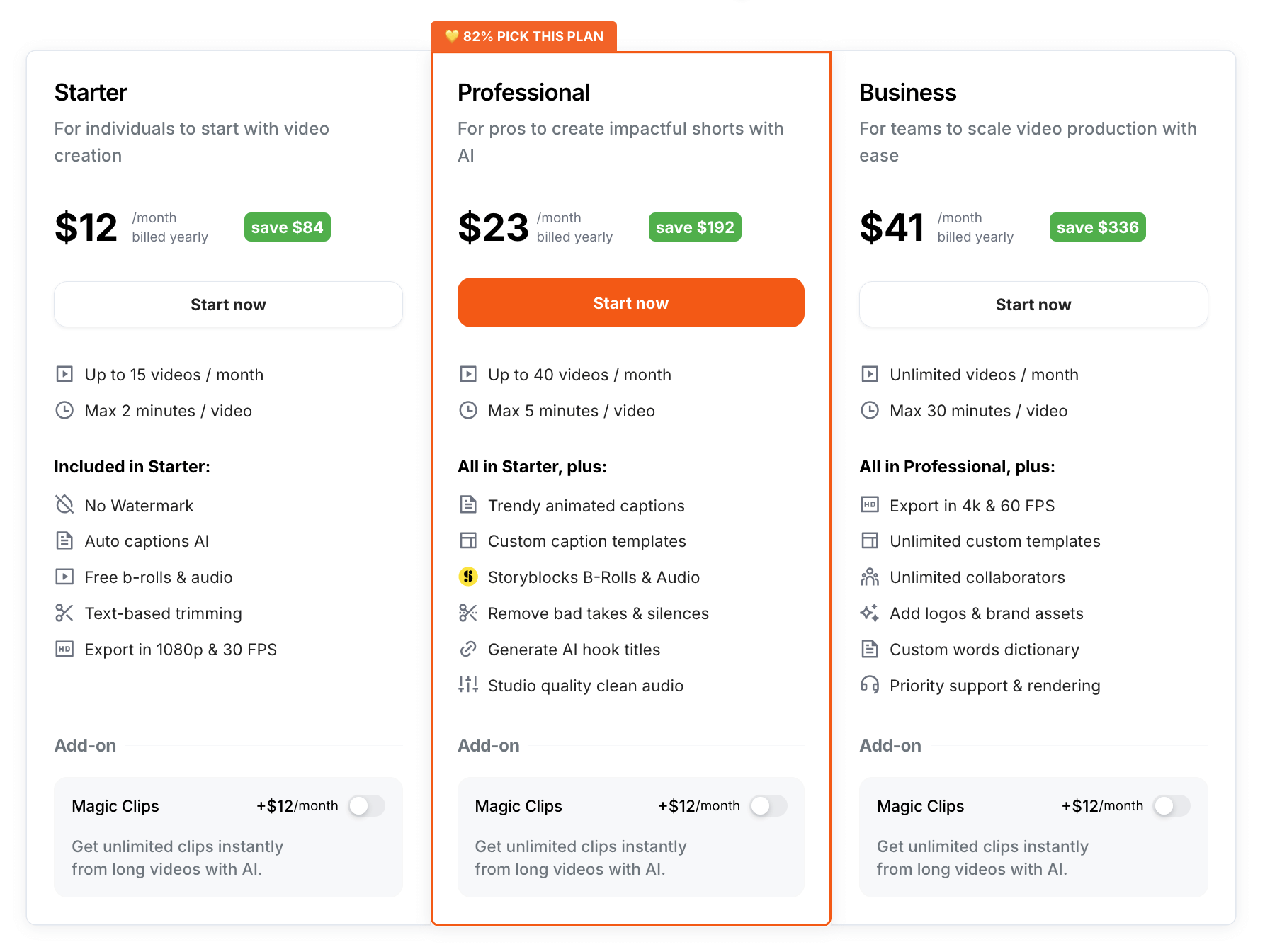
Three subscriptions are available (they can be cancelled at any time):
- The Starter subscription is mainly aimed at beginners with small content creation needs.
- The Professional subscription, used by the majority, is more complete and less limited. It can be used to subtitle 40 videos each month.
- The Business subscription allows you to edit unlimited videos.
Here’s a table summarizing the specifics of each subscription:
| Subscription | Starter | Professional | Business |
| Prices (monthly payment) | $19/month | $39/month | $69/month |
| Prices (annual payment) | $12/month | $23/month | $41/month |
| Number of credits | 15 videos/month | 40 videos/month | Unlimited |
| Video length | Up to 2′ | Up to 5′ | Up to 30′ |
As you can see, paying by the year gives you a 41% discount on the subscription price.
To get an additional 10% discount, here’s the Submagic promo code I’ve negotiated especially for you: SAVE10.
To activate it, click on “add a promotional code” on the payment page, then paste the code SAVE10.
Submagic support
Submagic support is very reactive. You can contact them directly from their site, via the chat displayed at the bottom right of the page. You can also join their Discord community to chat with designers and other users.
My final opinion on Submagic
Submagic convinced me. The tool is easy to use and above all saves a lot of time and money. I’d rather pay a subscription fee of $50 a month than pay an editor who will charge me that much per video…
I must also mention the quality of the rendering. Firstly, most of the time, subtitles are perfectly generated and no retouching is necessary. Secondly, they add dynamism to the video, helping to improve audience engagement.
I’d also like to underline the dynamism of the team, who are constantly improving the tool and adding new features on a regular basis.
That’s why I recommend Submagic. At least take the time to try it out for free (you won’t have to pay, unless you want to download the rendering) and don’t forget to use my promo code SAVE10.
If you need to create Shorts (short videos in vertical format) from long videos such as YouTube videos, check out my SendShort test and review, my Opus Clip review and my Klap review.